


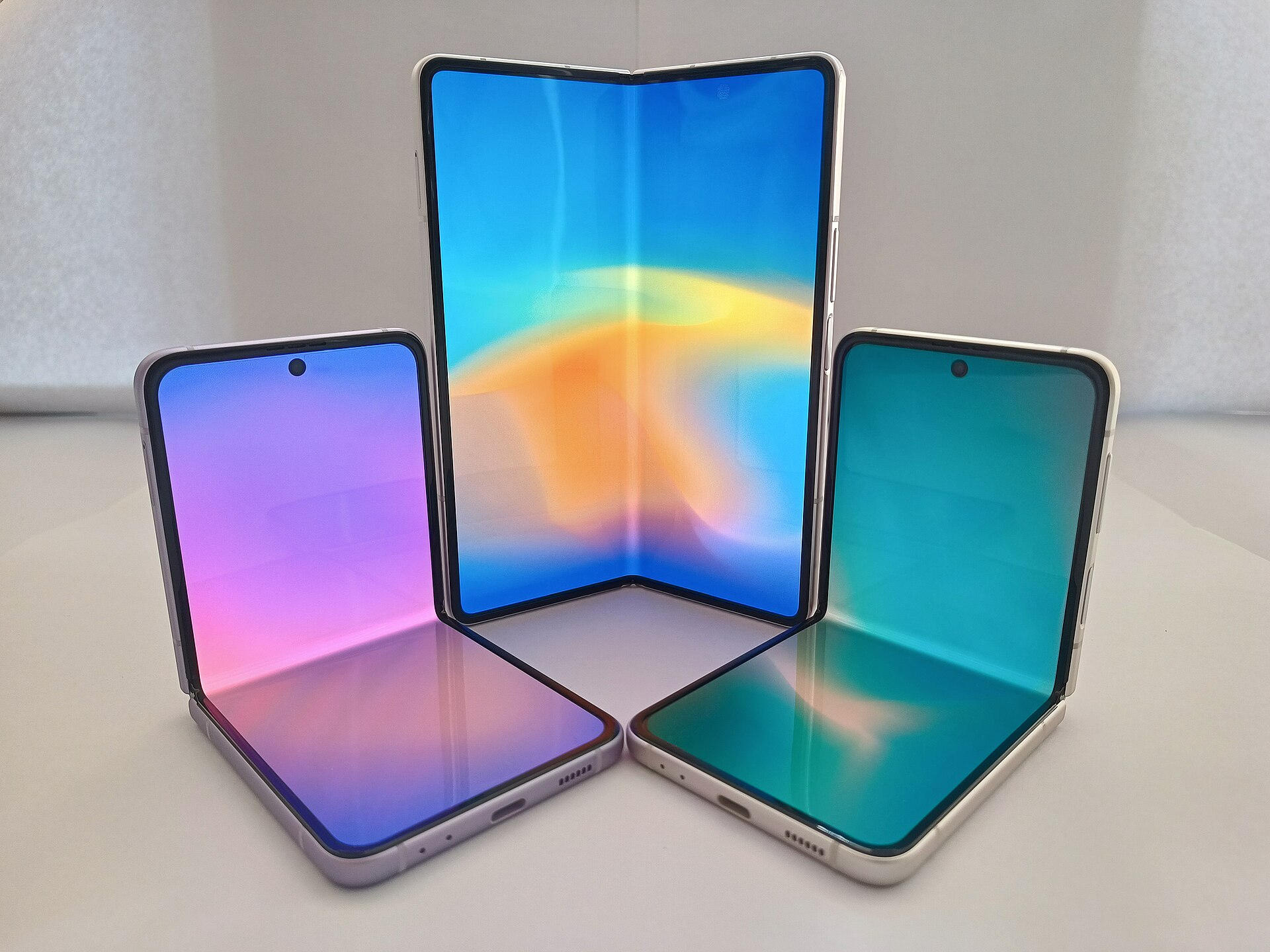
The Samsung Galaxy Z Fold 8 offers a large internal display with a 4:3 aspect ratio, a design choice that reduces letterboxing for widescreen content compared to previous models. However, this expanded screen real estate has led to complaints about apps not scaling correctly. Some users find that applications do not automatically adjust to the device’s unique dimensions, resulting in awkward positioning or cropped content.
Samsung introduced the App Continuity feature to help users switch between displays without interruption. Despite this, the transition can still cause visual glitches if an app lacks proper optimization for the foldable form factor. Owners are gathering on forums to share solutions for getting the most out of the foldable screen experience.
Adjusting App Aspect Ratios in Settings
Users can manually change how individual apps display on the inner screen. According to SamMobile, the device allows for specific aspect ratio adjustments on a per-app basis. This feature helps force applications to fill the screen or maintain a specific proportion, even if the developer did not design them for the foldable layout.
To access these controls, unfold the phone and navigate to Settings, then select Display and Aspect ratio. Alternatively, users can find this menu under Settings and Apps. From there, select the specific application that is causing display issues. The menu provides three options: full screen, 4:3, or 16:9. Choosing one of these settings will make it the default behavior for that app the next time it opens.
It is important to note that apps running in the background may need to be restarted for the changes to take effect. The system will apply the new aspect ratio the next time the application launches.
Using the App Info Menu
There is a second method to adjust display settings without digging through the main system menus. Users can press and hold the app icon on the home screen or app drawer. A small information button will appear in the top right corner of the app preview. Tapping this button opens the app details page.
Within the app details, select App aspect ratios. This shortcut leads to the same selection screen found in the main settings. Users can choose between full screen, 4:3, or 16:9. This method provides a quicker way to tweak display behavior for frequently used applications.
Even after adjusting these settings, some apps may still not scale perfectly. If an application has not been optimized for the foldable screen, users might still experience cropping or misalignment. The manual adjustments can mitigate these issues, but they cannot fix underlying code limitations in the software.
The 4:3 ratio on the Galaxy Z Fold 8 was praised in reviews for its balance between screen space and content visibility. While the trade-off involves occasional app misbehavior, the improved display quality remains a key selling point for the device.
Source: Engadget
