


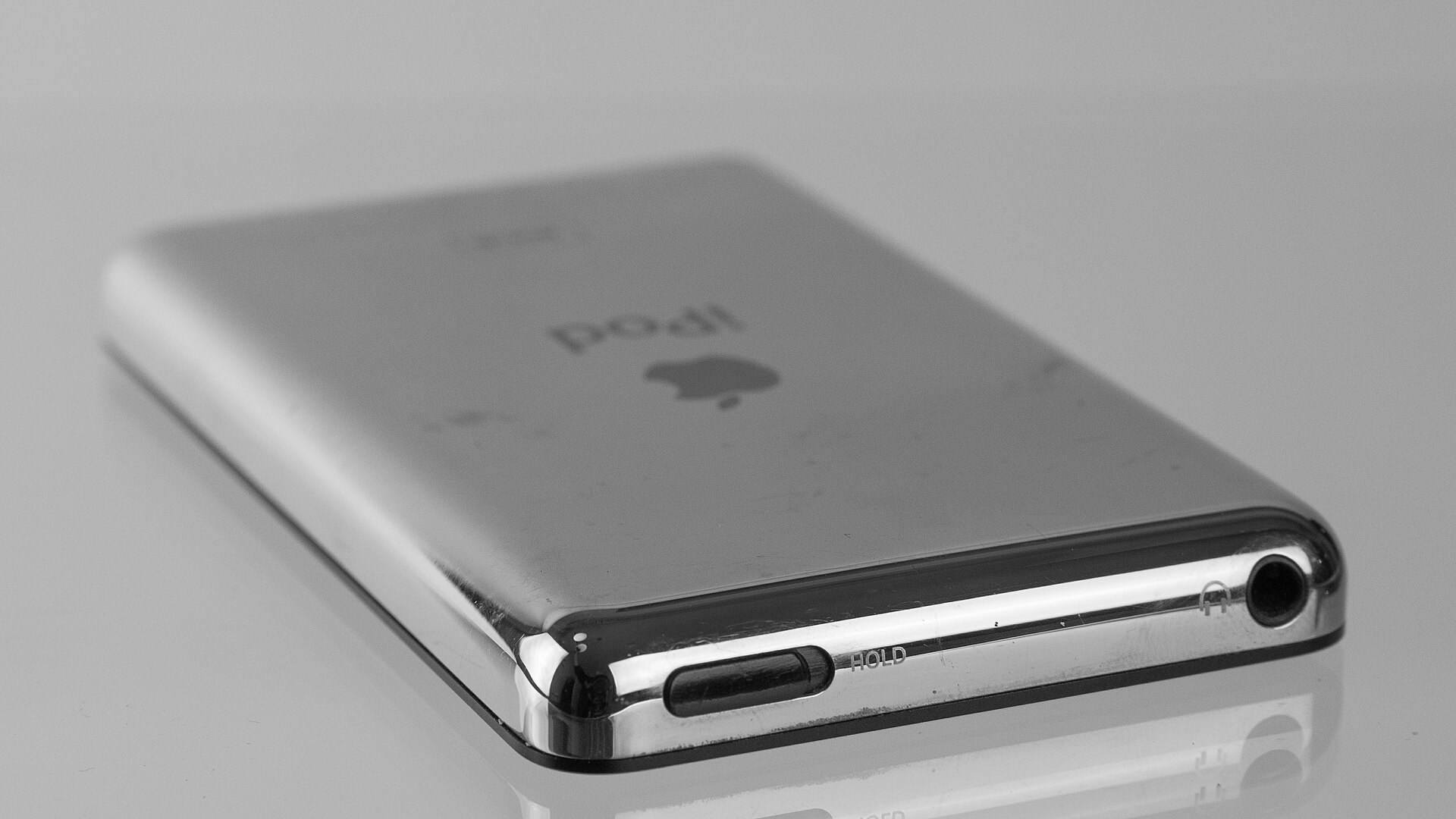
Apple discontinued its iconic iPod lineup years ago, yet many units remain in drawers or on shelves. While these devices are no longer used for music streaming, they can serve a practical second purpose. By enabling a specific setting, an older iPod can function as a basic USB flash drive for storing and transferring files between computers.
This method works best for pre-iOS models that feature a click wheel or the seventh-generation iPod nano with a touchscreen. The device will appear in Finder on a Mac or File Explorer on Windows just like any other external drive. However, users should manage their expectations regarding performance and capacity.
Storage Limits and Speed Constraints
It is important to note that older iPods are limited to USB 2.0 speeds. This means they are not faster than modern USB flash drives and are generally not suitable for transferring large files quickly. A standard 32GB USB flash drive typically costs around $10 and offers significantly more storage than most older iPods, which often have less than 20GB of capacity.
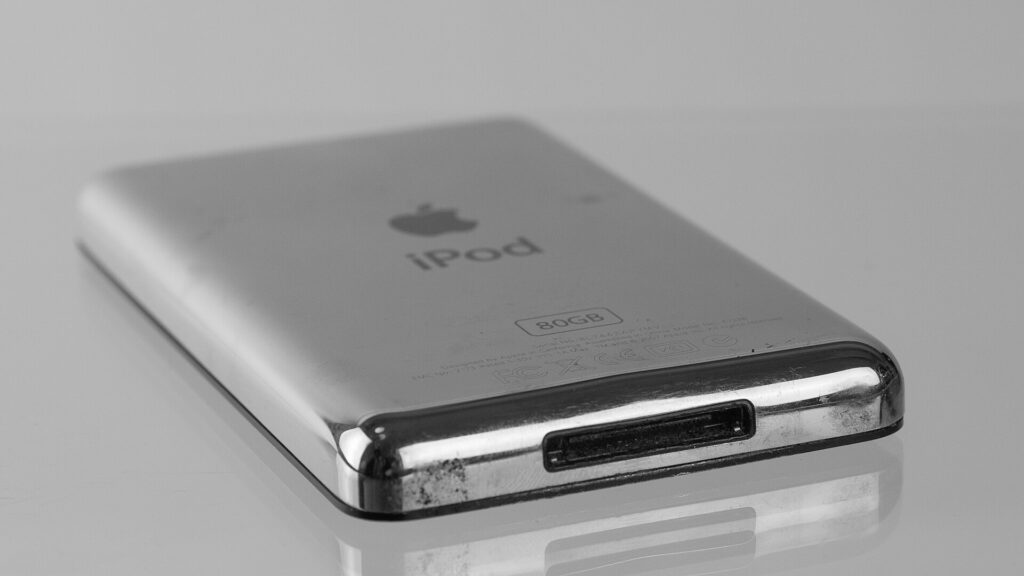
The only exception is the iPod Classic, which offered larger storage options. Even then, the transfer speeds remain bound by the USB 2.0 interface. If you already own an old iPod and want to reuse it, this is a viable option. If you need to buy storage, a dedicated flash drive is a more efficient and cost-effective choice.
Enabling Disk Use on Mac and Windows
To use an iPod as a flash drive, you must first enable the Disk Use feature, which is turned off by default. On a Mac, connect the device and select it from the Finder sidebar. Navigate to the General tab and click Enable Disk Use. Remember to click Apply before closing the window.
On Windows, you can use either iTunes or the Apple Devices app to enable this feature. The process is identical to the Mac version. Once enabled, the iPod will appear as an external drive. You can drag files onto it, but these files will not be visible on the iPod screen itself. They are stored alongside the system files and any existing music, so you will not have access to the full storage capacity.
File System Compatibility
Compatibility depends on how the iPod is formatted. An iPod set up on a Mac usually uses the HFS+ file system, which Windows cannot read without third-party software. For wider compatibility across both Mac and Windows, restore the iPod using a Windows PC. This will format the drive using FAT32.
FAT32 is readable by Macs, Windows, and many smart TVs. However, this file system has a limitation: it cannot handle individual files larger than 4GB. Restoring the iPod will erase all existing data, so back up any music or files before proceeding. Note that the iPod Touch does not support this feature because it runs iOS rather than the classic iPod operating system.
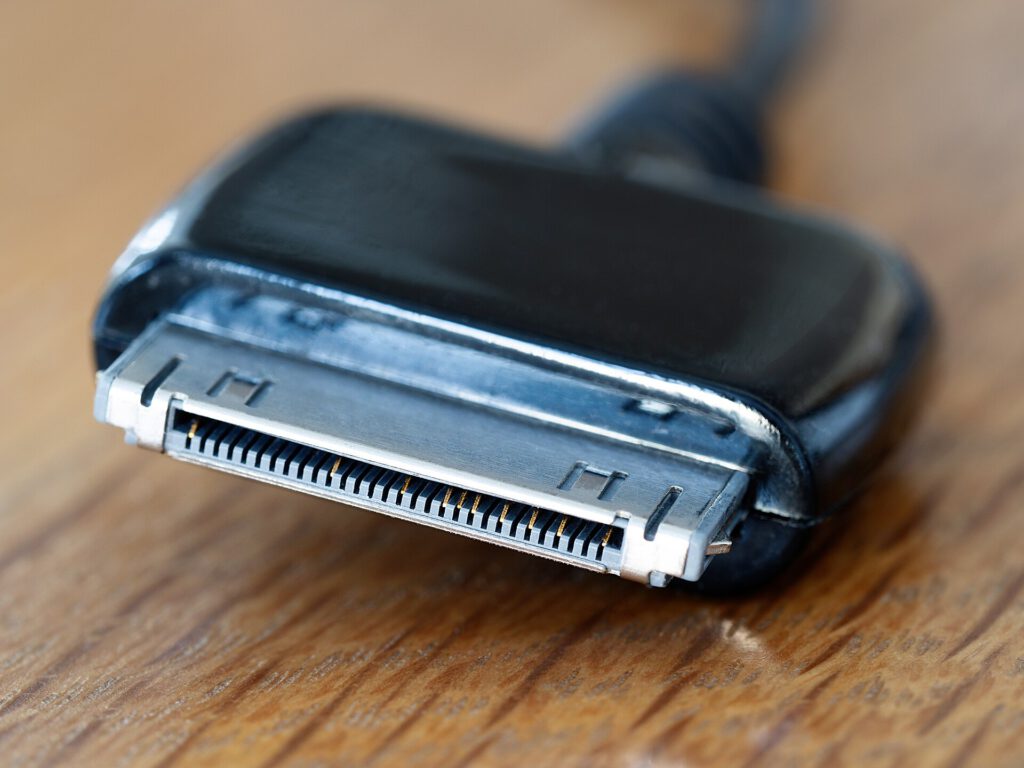
For models that freeze or fail to appear on a computer, there is a separate diagnostic feature called Disk Mode. This is distinct from Disk Use. On click wheel models, including the iPod Classic, iPod Mini, and fifth-generation iPod Nano, you can activate it by flipping the Hold switch and holding the Menu and center buttons until the Apple logo appears. Then, hold the center and Play/Pause buttons until the Disk Mode screen appears.
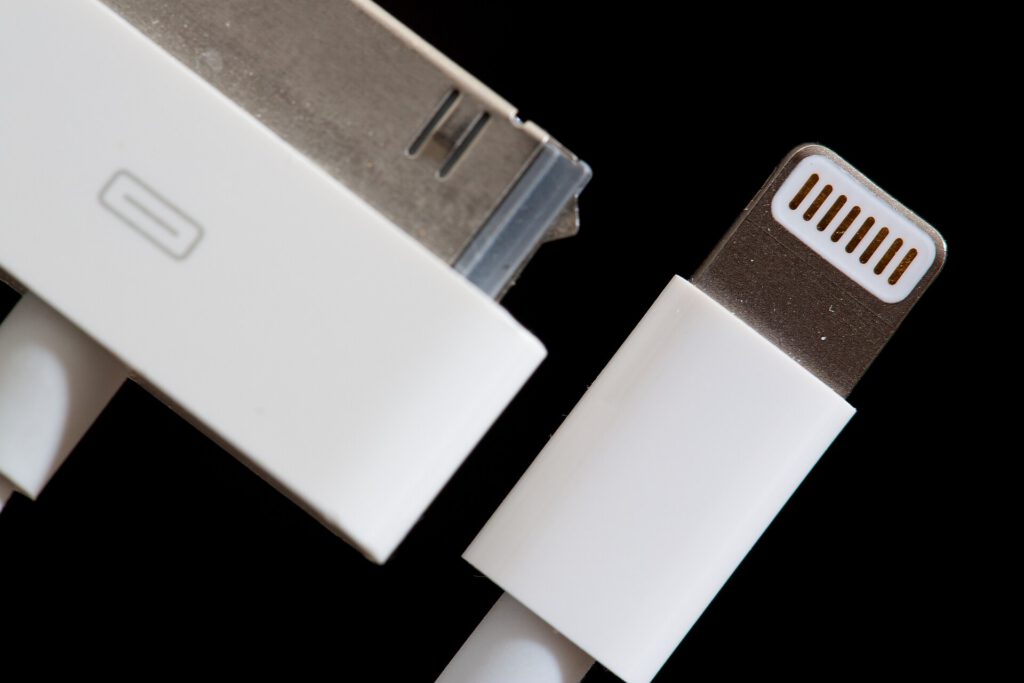
If you plan to use your iPod as a portable drive, ensure you have a 30-pin cable. These cables are rare today and difficult to find. For those wanting to add modern features like USB-C or Bluetooth to an old iPod, projects like the Sprout Pi Mainboard offer a way to upgrade the hardware for contemporary use.
Source: Engadget
