


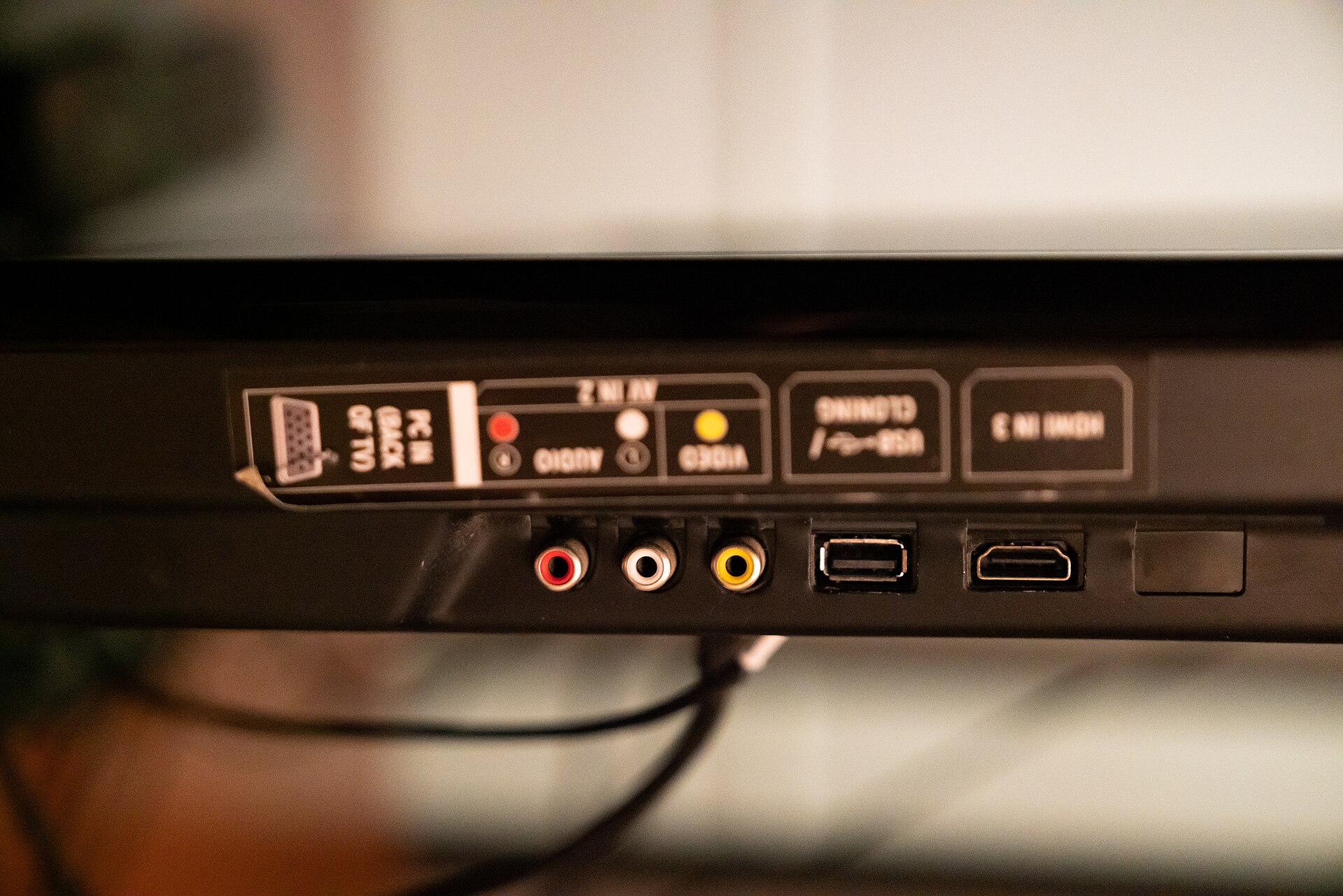
The Nintendo Switch 2 offers a hybrid gaming experience, allowing players to switch between handheld mode and a larger television screen. However, establishing a stable Nintendo Switch 2 TV connection can sometimes present technical hurdles. Users may encounter black screens, unresponsive consoles, or compatibility errors when docking the device. Before contacting customer support, several diagnostic steps can resolve these common connectivity snags.
Power Supply and Dock Verification
The foundation of a successful connection is a stable power supply. Nintendo advises starting the troubleshooting process by powering off the television and disconnecting all cables from the Switch 2 dock. This includes removing the AC adapter from both the dock and the wall outlet. Users should also remove the handheld console from the dock and leave all components unplugged for approximately 30 seconds to reset the hardware state.
Once the reset period is complete, reconnect the AC adapter to the dock and then to the wall socket. It is critical to ensure the adapter is fully seated in the dock’s power port. The Switch 2 dock features three ports on the rear panel behind a removable cover, with the top port designated for AC power. Users should inspect the AC adapter cable for any signs of fraying, damage, or splitting, as compromised cables can lead to power delivery issues.
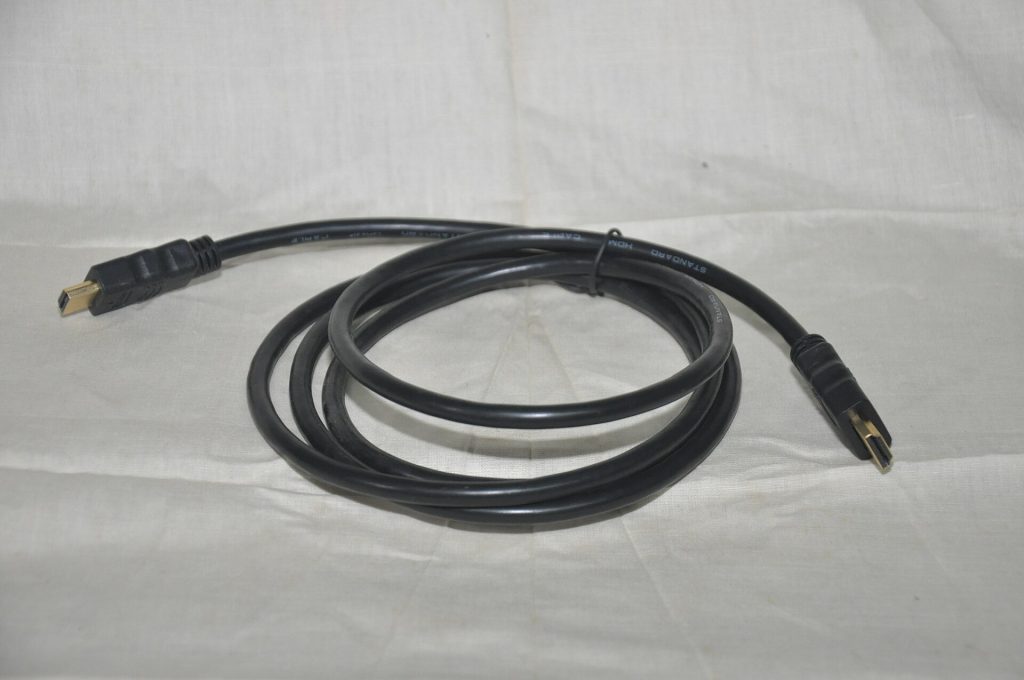
Power requirements for the Switch 2 are higher than those of its predecessor. The console requires an AC adapter capable of delivering a minimum of 54 watts to maintain a continuous TV connection. Using a third-party adapter that does not meet this specification may result in connection failures. If the original adapter is missing or damaged, Nintendo offers compatible replacements for $35 on its official website. To verify that the wall outlet is functioning, users can test it with another electronic device and charger.
HDMI Cable and Port Compatibility
After confirming power stability, the next step involves the HDMI connection. The Switch 2 comes equipped with an Ultra High Speed (UHS) dual-end HDMI cable that supports 48Gbps bandwidth and HDMI 2.1 specifications. This cable must be plugged into the HDMI-out port on the dock and the corresponding HDMI-in port on the television. Lower-speed cables, such as those included with the first-generation Switch, are not compatible with the Switch 2’s output requirements.
While UHS cables are backward compatible with older HDMI standards, using an HDMI 1.0 port will limit video output quality. To achieve the Switch 2’s maximum potential, users should connect to an HDMI 2.1 port on their television. This specification supports resolutions up to 8K at 60Hz or 4K at 120Hz. Most modern televisions, including many LG OLED models, feature multiple HDMI 2.1 ports. If the television model does not explicitly label its ports, users should consult the manufacturer’s specifications to confirm compatibility.
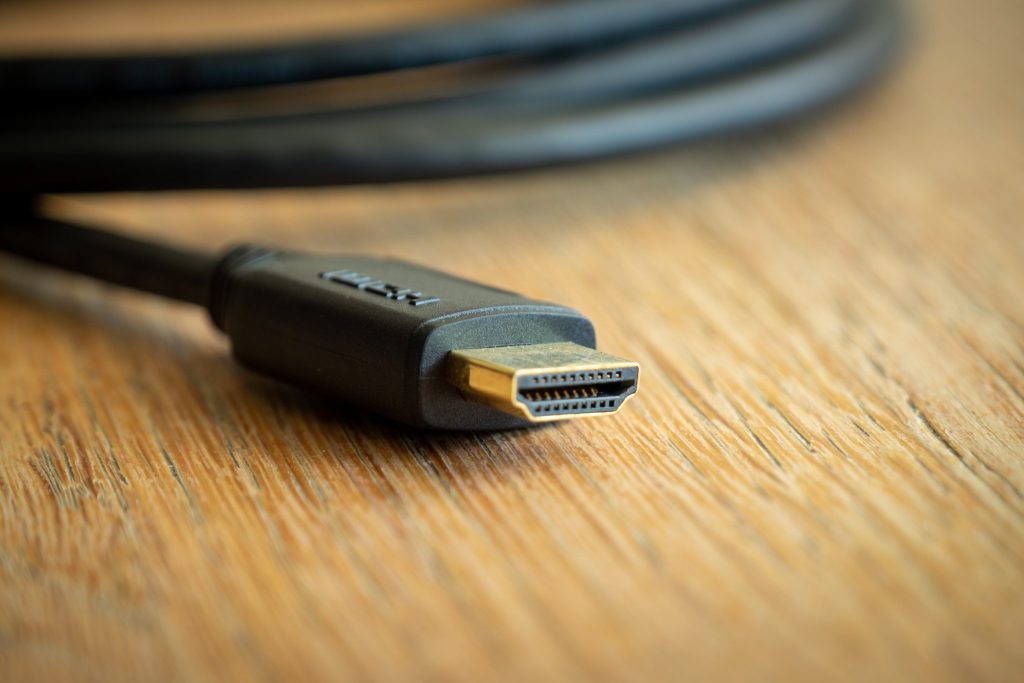
If the connection remains unstable, users should test alternative HDMI ports on the television or try a different UHS HDMI cable to isolate the issue. It is also advisable to verify that the television’s HDMI settings are configured correctly. Users should navigate to the picture or advanced settings menu and look for options such as Auto Low Latency Mode (ALLM), Gaming Mode, HDMI Ultra HD Deep Color, or Input Signal Plus. Enabling these features for the specific port in use can improve signal integrity.
Console Settings and Software Updates
If hardware checks do not resolve the issue, the problem may lie within the console’s software or display settings. Users should remove the handheld from the dock and power it on directly. Ensuring the device is running the latest software version is essential, as updates often include fixes for connectivity bugs. This can be verified by navigating to System Settings and selecting System Update.
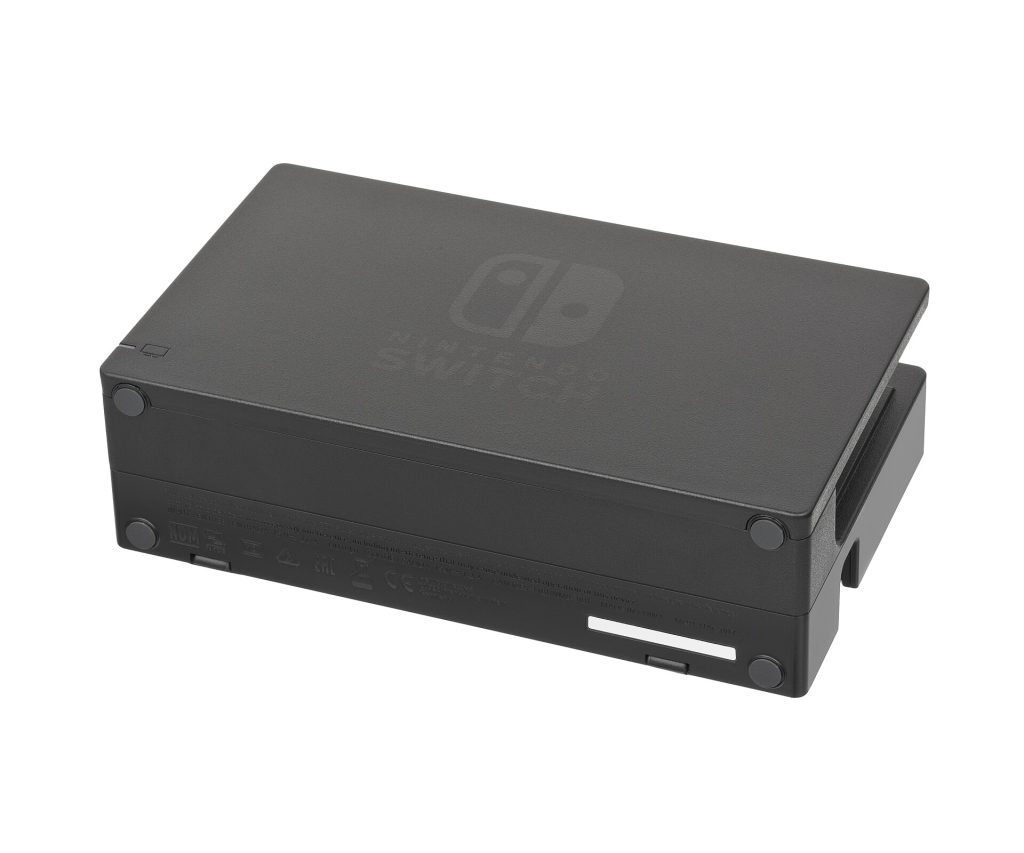
Within the display settings, users can adjust the TV Resolution to Automatic or manually select a resolution that matches their television’s capabilities. Additionally, enabling the Match TV Power State option allows the console to automatically wake the television when the Switch 2 is powered on and docked. This feature may not function correctly with older television models that lack modern handshake protocols.
Finally, users should ensure their controllers are charged and properly paired with the console. If all troubleshooting steps fail, Nintendo recommends contacting support for further assistance. In some cases, users may need to mail their dock and console to Nintendo for professional diagnosis and repair.
Source: Engadget
